

- select the pin icon, or press ⌘P, to pin the panel
- select ×, or press Esc, to close it
Video properties
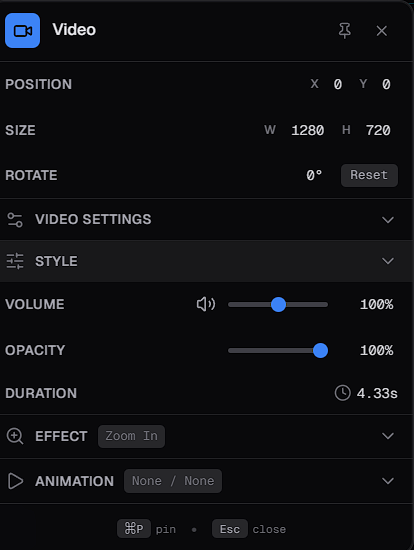
The values shown in the screenshot are examples. Your clip’s values will differ.
Effects
Expand Effect in the Video properties panel to add and adjust an effect.Not every option applies to every effect or every video. The panel shows the options that are available for the effect you choose.
- None
- Zoom
- Pan
- Ken Burns
- Punch In
- Punch Out
- Jump Cut
- Drift
Set the focal point
The focal point, or origin, is the part of the frame that the effect centers on.
- Focus preview: drag in the preview to set the zoom focal point.
- Anchor to Face and Upper Third: options for positioning the focal point.
- Clip to Frame: an option that controls how the effect relates to the edges of the frame.
Animation
Expand Animation in the Video properties panel to set how the clip appears and disappears.- An Enter animation plays when the clip appears.
- An Exit animation plays when the clip ends.
Captions properties
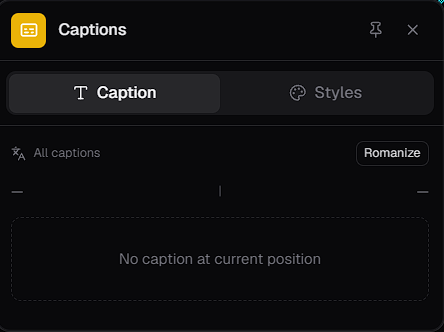
- Caption: shows All captions, a Romanize button and the caption at the playhead’s current position.
- Styles: options for how your captions look.
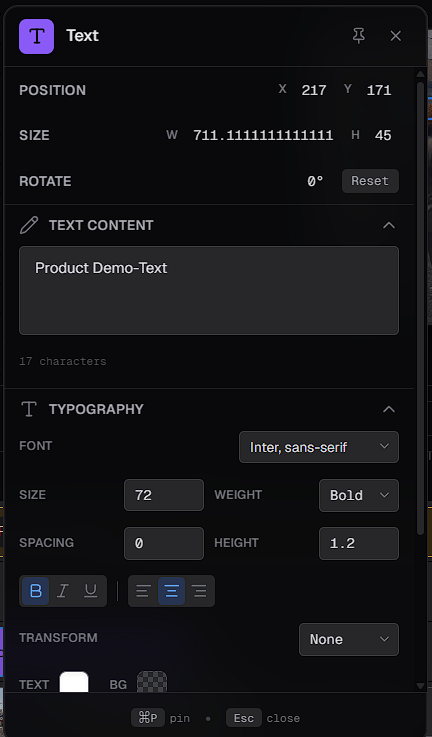
Text properties
Related
- Work with the timeline
- Text and motion
- Aura AI assistant, including Transcribe for generating captions