

The Video Editor is separate from Storyteller. A Storyteller film doesn’t open directly as an editor project, but you can download it and import it into a project to edit it. See Edit a Storyteller film.
Create or open a project
Create a project
1
Start a new project
Select Projects in the main sidebar, then select Create Project. The Create New Project dialog opens.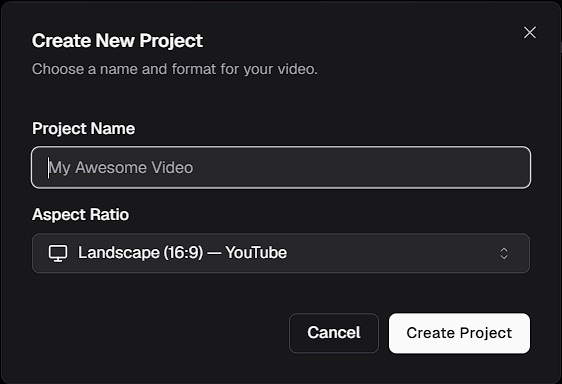
2
Name your project
Enter a name for your project.
3
Choose an aspect ratio
Choose the aspect ratio that suits where your video will be shown:
- Landscape (16:9) — YouTube
- Portrait (9:16) — TikTok, Reels
- Square (1:1) — Instagram
- Vertical (4:5) — Social
4
Create the project
Select Create Project. Your new project opens in the editor.
Open an existing project
Select Projects in the main sidebar, then select the project’s card. The project opens in the editor.Parts of the editor
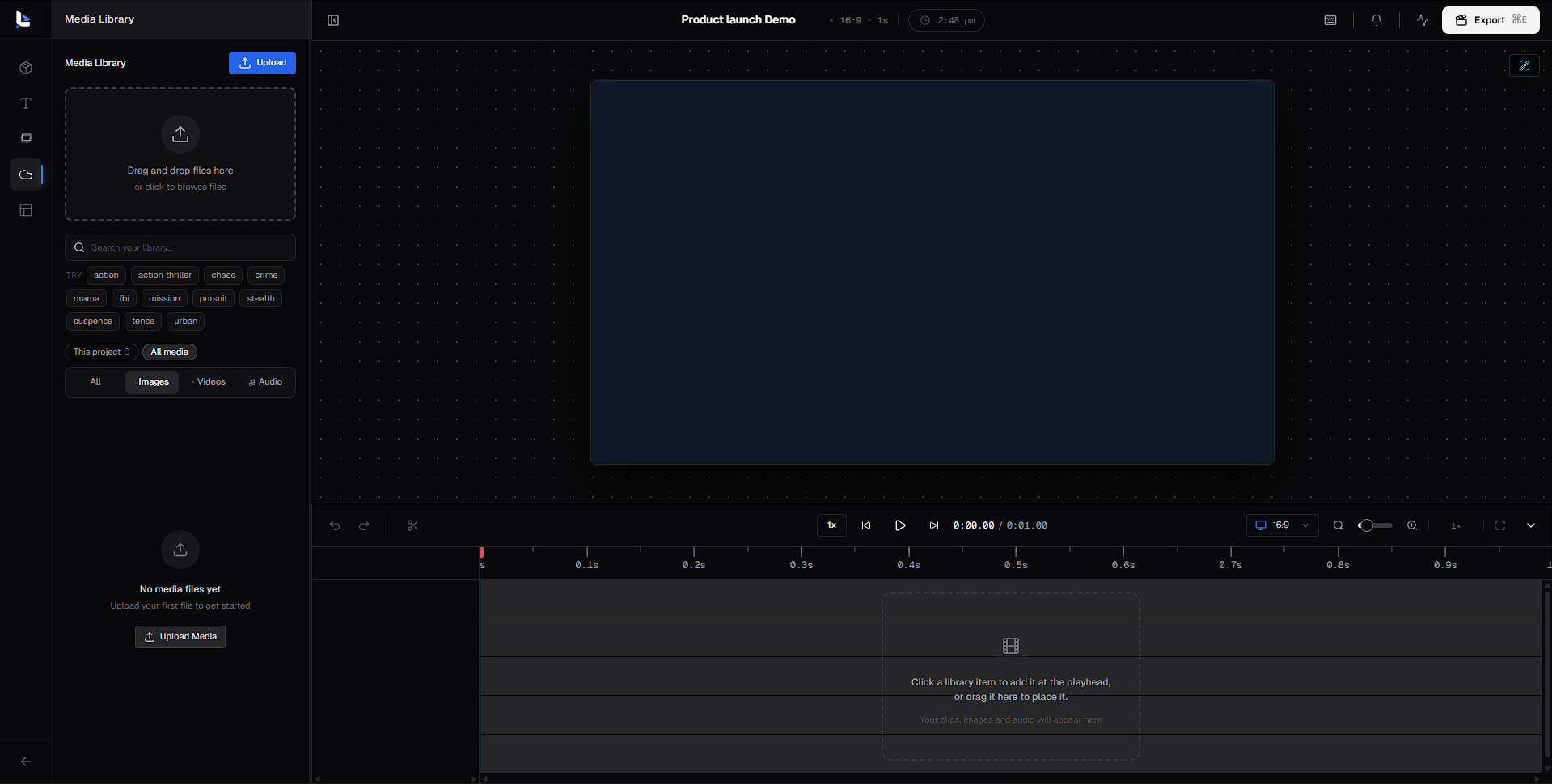
Top bar
The bar across the top of the editor shows your project’s details and gives you quick access to editor tools..png?fit=max&auto=format&n=LqE1-2ycKVvbRs86&q=85&s=39af3cac52f5a40335b19c4eaa33d4bb)
When you click the clock, the same spot shows your credits instead:
.png?fit=max&auto=format&n=LqE1-2ycKVvbRs86&q=85&s=cd0dd1e575578076fd23d92fff786a5d)
A typical editing workflow
- Upload your footage to the Media Library, or find clips in Stock Media.
- Arrange your clips on the timeline.
- Add text, captions and motion elements.
- Fine-tune each clip, such as its position, volume, effects and animations, in its properties panel. See Clip properties.
- Use Aura to suggest edits, generate captions or remove silences.
- Export your video from the Output Inspector and download it.